 DotMD
DotMD
Codex writes the spec.You review it in DotMD.
Add DotMD to Codex once. Every spec and plan it writes then comes to you as a document to read and comment on, Codex waits while you review, and every fix shows up in the file for you to accept.
macOS 14 or later. Reading is free; DotMD Pro has a 3-day free trial.
Quick answer
In the Codex app open Settings → MCP servers → Add server, choose Streamable HTTP and paste http://127.0.0.1:8089/mcp. Or add [mcp_servers.dotmd] to ~/.codex/config.toml with tool_timeout_sec = 3600, so Codex can wait while you review. Restart Codex. Reviews and the agent tools are part of DotMD Pro (3-day free trial); reading stays free.
How to connect Codex: the app or config.toml
DotMD runs a small MCP server on your Mac. Codex talks to it to open files in DotMD, send you documents for review and read your comments. The Codex app, the Codex CLI and the Codex extension for your IDE share one setup, so you do this once.
-
Turn on DotMD's MCP server
In DotMD, open Settings → MCP and switch on MCP server. The status turns green. Switch on Start with DotMD too, so the server is ready whenever DotMD is open.
-
Add the server in Codex
In the Codex app open Settings → MCP servers → Add server, choose Streamable HTTP and paste the address from the top of DotMD's Settings → MCP. By default it is
http://127.0.0.1:8089/mcp. -
Or edit config.toml
Prefer a file? Add this to
~/.codex/config.toml. Settings → MCP in DotMD has a copy button for it:[mcp_servers.dotmd] url = "http://127.0.0.1:8089/mcp" tool_timeout_sec = 3600Restart Codex after adding it.
-
Check that it answers
Ask Codex to open a Markdown file in DotMD. The file opens, and Recent Requests in Settings → MCP lists the call in plain words, with a green check.
Why tool_timeout_sec matters
When Codex sends you a spec for review, it waits in one MCP tool call until you click Send or Approve. It spends no tokens while it waits. But Codex gives up on a tool call after a minute unless you tell it otherwise, and a review takes longer than that.
tool_timeout_sec = 3600 lets Codex wait for up to an hour. Without it, Codex stops waiting and your review has nobody to go to. Nothing is lost: your comments stay in DotMD, and you can tell Codex "Read my comments in DotMD and fix them" when you're done. But the loop works best when Codex is still waiting for you.
Help Codex find your comments
Codex looks at its MCP tools only when it thinks it needs them. Asked "fix the comments on paywall.md", it may search the project for them instead of reading them in DotMD, because your comments are kept by DotMD, not in the file. There are two ways to point it the right way.
The first is to mention DotMD in the request: "fix the comments on paywall.md in DotMD". The second is to add these lines once to ~/.codex/AGENTS.md, or to the AGENTS.md of a project:
Comments and reviews on Markdown files are kept in DotMD (MCP server `dotmd`), not in the files.
When I mention comments, a review or remarks on a .md file, read them with get_review_comments,
fix each one and send it back with resolve_review_comments.
After writing or substantially changing a spec, plan or design doc for me, send it to me with
request_review and wait for my answer; call it again after fixing my comments, until I approve.
With these lines Codex sends you every spec it writes, and always looks for your comments in DotMD.
Your first review of a Codex spec
Ask Codex for the document, and say where it should go and that you want to review it:
"Write the spec to docs/spec.md and send it to me in DotMD for review."
-
Codex sends you the file
It saves the spec and sends it to you. A notification appears, the file is listed under Needs You, and Codex waits.
-
You comment on the passages
Read the spec rendered, with its tables, diagrams and code. Select a passage that should change, press ⌥⌘M and write what you want. Go through the whole document before you send anything.
-
You send the comments
Click Send at the bottom of the Review panel. Codex gets all your comments at once. If you have nothing to change, the button says Approve.
-
You check each fix in the file
Codex edits the file and sends each comment back with a note on what it did. Every fix sits next to the comment it answers, the old text in red and the new in green. Accept it, Reopen it, or Accept All. Then Approve, or send another round.
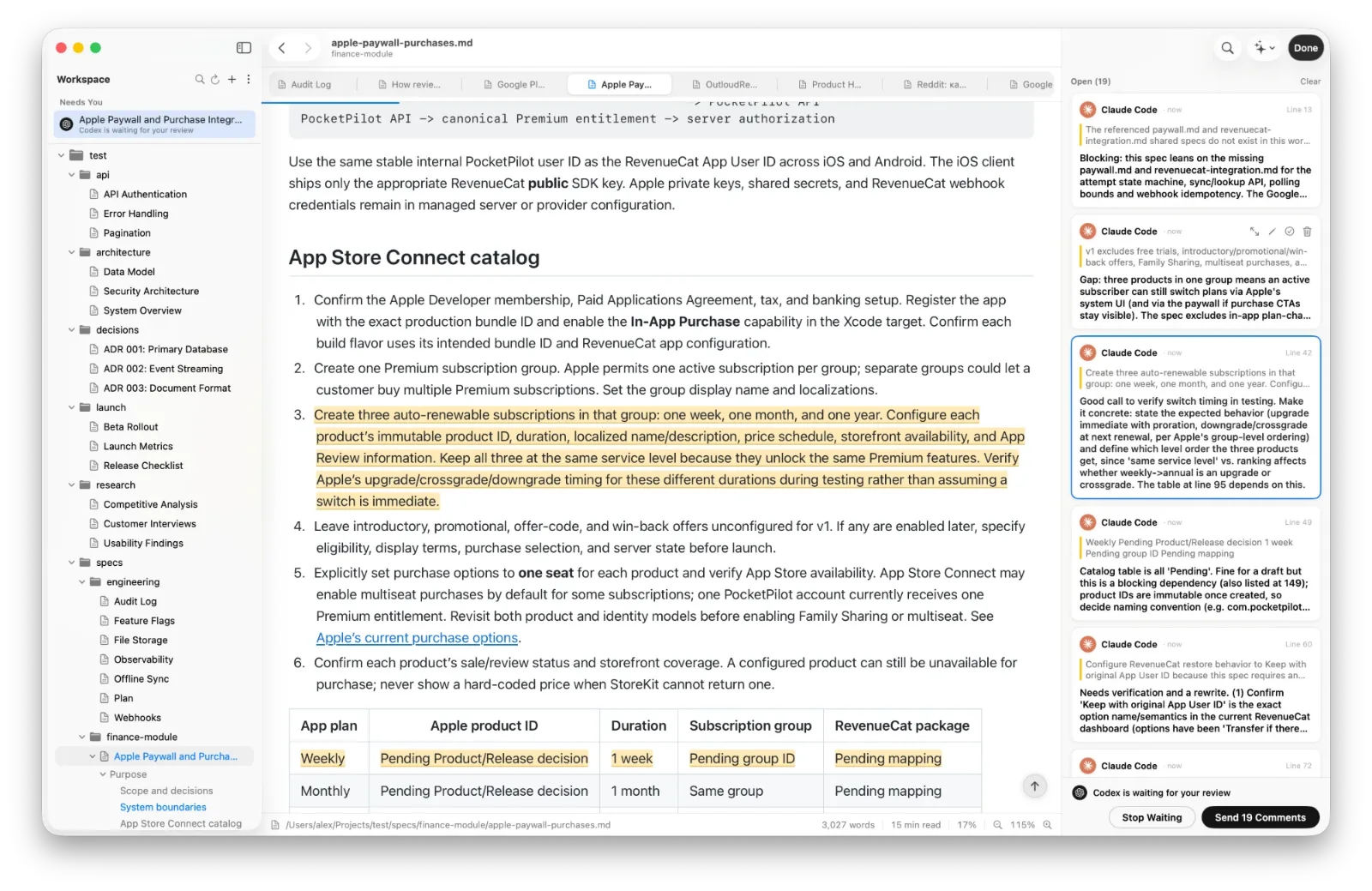
Codex can also be the reviewer. Ask it to "review docs/compare.md in DotMD and leave your comments on the lines", and its comments appear under its name. See One agent reviews another.
The ChatGPT app can't connect
The ChatGPT app reaches MCP servers from OpenAI's servers on the internet, not from your Mac. DotMD's server answers only on your Mac, so the ChatGPT app can't use it. Use Codex for OpenAI's models.
Questions about Codex and DotMD
Why does Codex stop waiting for my review?
Its tool timeout is short by default. Add tool_timeout_sec = 3600 to DotMD's server in config.toml and restart Codex.
Codex searches the project instead of reading my comments.
Mention DotMD in the request ("…in DotMD"), or add the AGENTS.md lines from this guide once.
Does it work with the Codex CLI and the IDE extension?
Yes. The app, the CLI and the IDE extension share one setup.
Can I connect the ChatGPT app instead?
No. It reaches MCP servers from OpenAI's servers, and DotMD answers only on your Mac. Use Codex.