 DotMD
DotMD
Your agents write the specs.You get them right in DotMD.
Claude Code, Codex and Cursor write specs, plans and design docs in minutes. DotMD turns each one into a document you review like a pull request: comments on the exact passage, fixes shown in the file, and your approval at the end.
macOS 14 or later. Reading is free; DotMD Pro has a 3-day free trial.
Quick answer
Connect your agent to DotMD over MCP. When it writes a spec or a plan, it sends you the file and waits. You comment on passages and press Send; the agent fixes each comment, and you accept or reopen every fix in the file. Then Approve.
Why the chat is a poor place to review
An agent writes a spec in a minute. Reading it carefully and getting it right is still your job, and a chat is a bad place for that. You quote a paragraph and describe what you want, the agent rewrites half the file, and you can't tell what it changed. The next round starts from the same guesswork.
Review a spec the way you review code instead. In DotMD each comment is tied to the passage it is about, the fix appears in the file right next to that comment, and every version of the file is kept.
The review loop
-
The agent sends you the file
It writes the spec and sends it to you for review. A notification tells you, the file waits under Needs You in the sidebar, and the agent waits too.
-
You comment on the passages
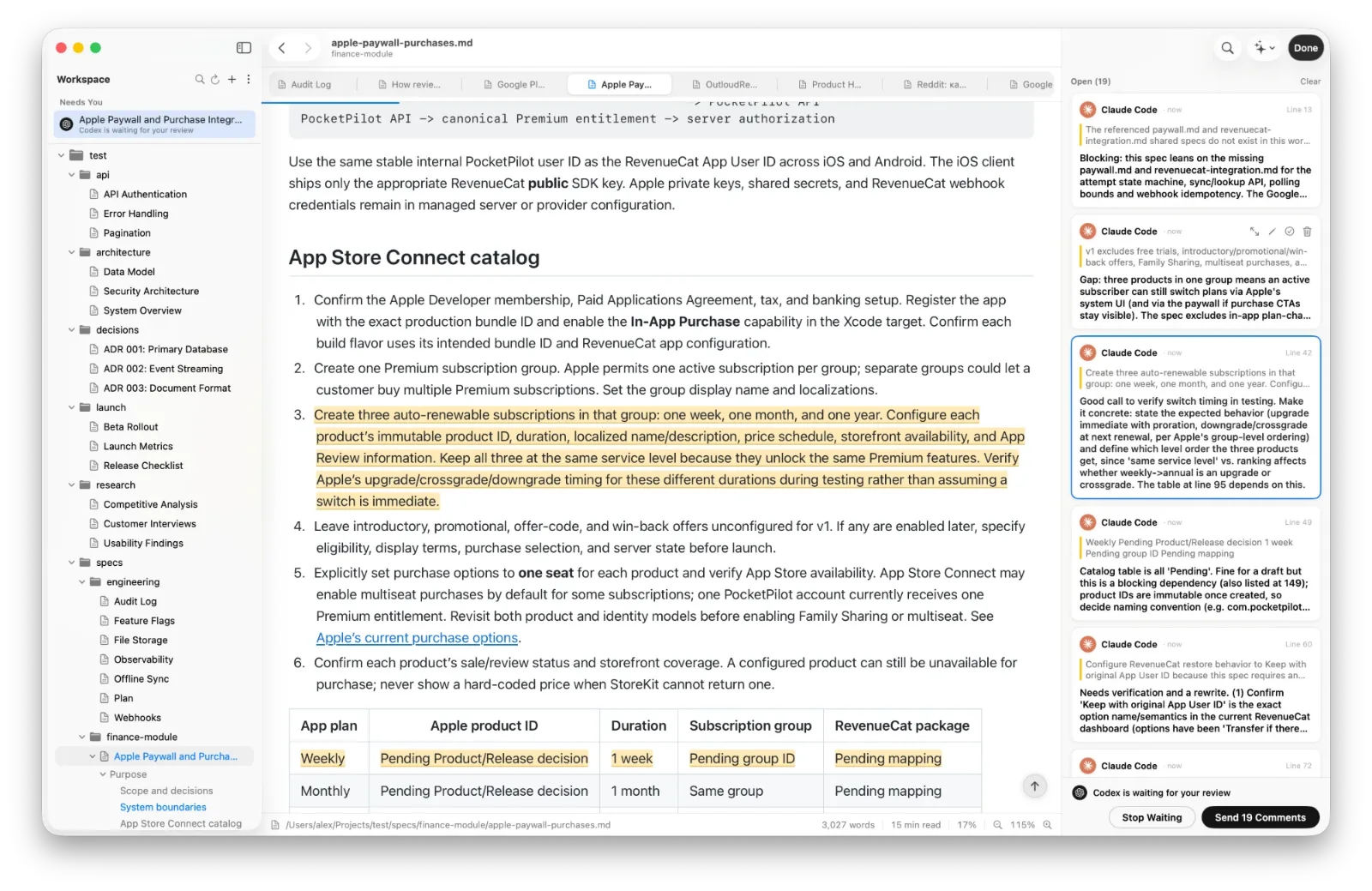
Read the document as it will look, with its tables, diagrams and code. Select a passage that should change, press ⌥⌘M and write what you want. Go through the whole file before you send anything.
-
You press Send
Click Send at the bottom of the Review panel. The agent gets all your comments at once, with the passage and the lines of each.
-
The fixes appear in the file
The agent edits the file and sends each comment back with a note on what it did. The old text is red, the new text green, next to the comment it answers.
-
You accept or reopen, then approve
Accept a fix, Reopen it with a better note, or Accept All. When nothing is left to change, click Approve and the agent carries on with its task.
What to review this way
Anything an agent writes as a Markdown file and you need to get right before it acts on it:
- Specs and design docs for a feature.
- Implementation plans, before the agent writes the code.
- Migration and rollout plans, where a missed step is expensive.
- READMEs and docs that other people will follow.
- Comparison tables, where each row can be wrong on its own.
The comments also work with no agent at all, as notes to yourself on a draft.
Nothing waits unnoticed
An agent that waits for you is easy to forget. DotMD keeps it in view without jumping in front of what you are doing:
- Needs You, at the top of the sidebar, lists every file where someone waits for you: an agent waiting for your review, or fixes you haven't checked yet.
- The Dock icon shows how many files need you.
- In a file, a banner says what waits, with a Review button, and the toolbar's Review button shows a red count of fixes to check.
- The agent waits in a single call and spends no tokens while you read, however long it takes.
What you need
- A Mac with macOS 14 or later.
- DotMD Pro for reviews and agents: Yearly with a 3-day free trial, or Lifetime. Reading Markdown is free. See pricing.
- An agent that speaks MCP, connected to DotMD. The Claude Code and Codex guides have the one-line setup for each.
Questions about reviewing AI specs
Why not just review in the chat?
In a chat you quote a paragraph, the agent rewrites half the file, and you can't tell what changed. In DotMD a comment is tied to the passage, the fix shows as a diff next to it, and every version of the file is kept. It's a code review, for a document.
Which agents can send me a document?
Any MCP client: Claude Code, Codex, Cursor, Visual Studio Code and others.
Does the agent spend tokens while it waits?
No. It waits in one tool call until you press Send or Approve.
Can I send a document myself, without the agent asking?
Yes. Comment on any file, then tell the agent "Read my comments in DotMD and fix them." The Review panel has this prompt with a Copy button.