 DotMD
DotMD
Cursor's agent writes the doc.You review it in DotMD.
Add DotMD to Cursor once. The agent then sends you its specs and plans as documents to read and comment on, reads your comments on the exact lines, and fixes them in the file for you to accept.
macOS 14 or later. Reading is free; DotMD Pro has a 3-day free trial.
Quick answer
Add DotMD as an MCP server in Cursor with the configuration below (DotMD's Settings → MCP has a copy button). Visual Studio Code and other MCP clients take the same address, http://127.0.0.1:8089/mcp. Then ask the agent to send its spec to you in DotMD. Reviews and the agent tools are part of DotMD Pro (3-day free trial); reading stays free.
Cursor MCP setup: add DotMD to mcp.json
DotMD runs a small MCP server on your Mac. Cursor's agent talks to it to open files in DotMD, send you documents for review and read your comments. Setting it up takes a minute.
-
Turn on DotMD's MCP server
In DotMD, open Settings → MCP and switch on MCP server. The status turns green. Switch on Start with DotMD too, so the server is ready whenever DotMD is open.
-
Add the server in Cursor's MCP settings
Open Cursor's settings, go to the MCP section and add a server with this configuration. It goes into the
mcp.jsonfile that Cursor keeps for its MCP servers:{ "mcpServers": { "dotmd": { "type": "http", "url": "http://127.0.0.1:8089/mcp" } } }If you changed the port, copy the address from the top of DotMD's Settings → MCP.
-
Check that it answers
Ask the agent to open a Markdown file in DotMD. The file opens, and Recent Requests in Settings → MCP lists the call in plain words, with a green check.
Visual Studio Code and other MCP clients
DotMD isn't tied to Cursor. Visual Studio Code and any other MCP client that can talk to an HTTP server use the same address, http://127.0.0.1:8089/mcp. Add it as an HTTP server in the client's MCP settings, with the same configuration as above if the client takes JSON. Everything else on this page works the same.
Claude Code and Codex have their own setup. See the guides for Claude Code and Codex.
Let the agent wait for you
When the agent sends you a spec for review, it waits in one tool call until you click Send or Approve, and spends no tokens while it waits. That needs a long tool timeout for the MCP server in your agent: look for the setting in its MCP options.
With a short timeout the agent asks again every minute or so, and each time is a turn of the model, or it stops waiting altogether. Nothing is lost either way: your comments stay in DotMD.
Your first review of a Cursor agent's spec
Ask the agent for the document, and say where it should go and that you want to review it:
"Write the spec to docs/spec.md and send it to me in DotMD for review."
-
The agent sends you the file
It saves the spec and sends it to you. A notification appears, the file is listed under Needs You, and the agent waits.
-
You comment on the passages
Read the spec rendered, with its tables, diagrams and code. Select a passage that should change, press ⌥⌘M and write what you want. Go through the whole document before you send anything.
-
You send the comments
Click Send at the bottom of the Review panel. The agent gets all your comments at once. If you have nothing to change, the button says Approve.
-
You check each fix in the file
The agent edits the file and sends each comment back with a note on what it did. Every fix sits next to the comment it answers, the old text in red and the new in green. Accept it, Reopen it, or Accept All.
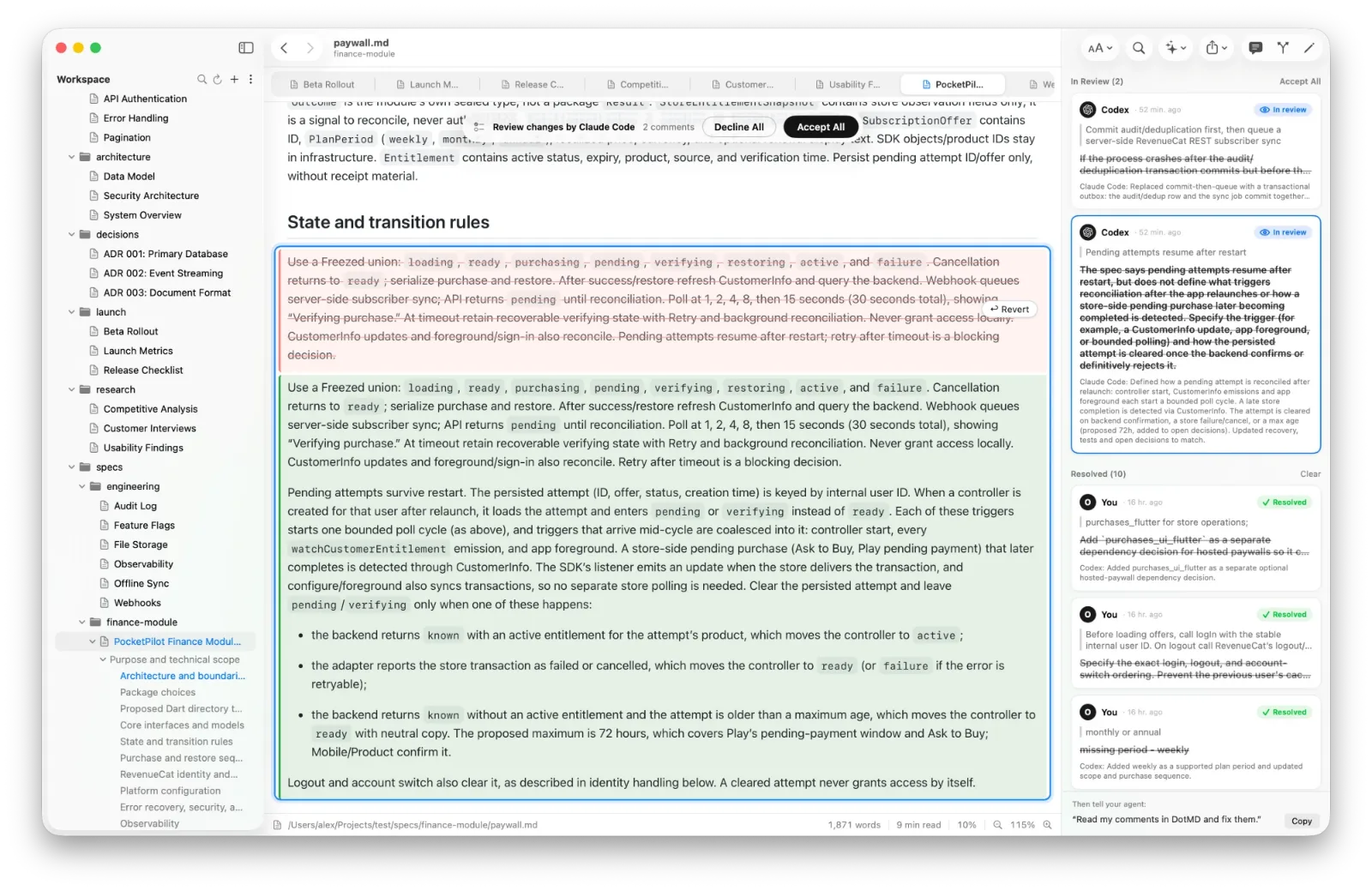
What the agent can do
Besides sending you documents, the agent can open a file at a line, read what you selected, highlight the lines it changed, search your workspace and leave comments as a reviewer. The MCP server guide lists all twelve tools. A few requests that work well:
- "Write the plan to docs/plan.md and open it in DotMD."
- "Rewrite the paragraph I selected in DotMD."
- "I left comments on the plan in DotMD. Go through them."
Questions about Cursor and DotMD
Does it work in Visual Studio Code?
Yes, with any MCP client: add the same address as an HTTP server in its MCP settings.
The agent stopped waiting before I finished.
Your comments stay in DotMD. Tell the agent "Read my comments in DotMD and fix them", or raise its MCP tool timeout.
Do I need to keep DotMD open?
Yes, it runs the MCP server while it's open.
Can the agent change files without me?
DotMD's server never writes files. The agent edits files as it always does, and you see every change in DotMD.