 DotMD
DotMD
Edit Markdownwith a live preview.
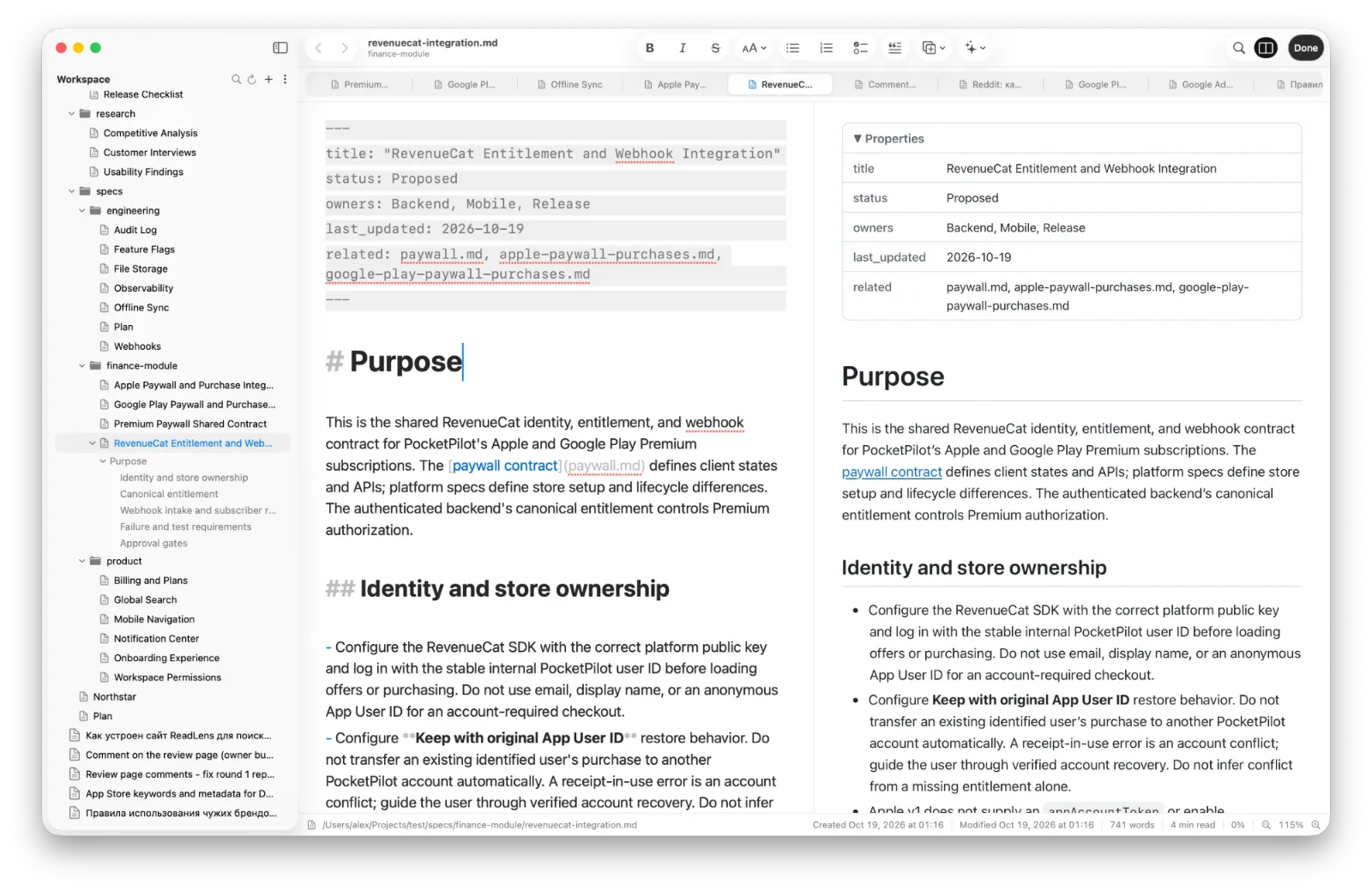
Write in plain text that is formatted as you type, with the finished page next to it. Click anything on the page and the editor jumps to its source. The file on disk is always up to date.
macOS 14 or later. Reading is free; DotMD Pro has a 3-day free trial.
Quick answer
Press ⌘E to edit. The text is formatted as you type, and Preview (⌥⌘E) shows the rendered page beside it; click anything on the page to jump to its source. There is no Save button: every change is written to the file at once, and every version is kept.
How to edit Markdown with a live preview
The file stays plain text, saved as .md. The editor formats it as you type: headings are larger, bold and italic show at once, and the markup characters are dimmed.
-
Start editing
Press ⌘E. With Settings → Editor → Double-click to enter edit mode on, double-clicking the page opens the editor right at that paragraph.
-
Turn on Preview
Click Preview or press ⌥⌘E. The rendered page appears to the right of the text and updates as you type, without flicker. Whether Preview is on is remembered for next time.
-
Jump from the page to the source
Click anything on the page: a paragraph, a heading, a list item, a table row, a code block. The editor jumps to its Markdown and highlights it in yellow for a moment. Both sides scroll together, line by line.
-
Finish
Click Done or press ⌘↩ to go back to reading. There is nothing to save: every change is written to the file at once, ⌘Z and ⇧⌘Z undo and redo, and Version History keeps the earlier versions.
The toolbar has the usual formatting: bold (⌘B), italic (⌘I), headings 1 to 3 (⌥⌘1 to ⌥⌘3), lists and quotes. Pressing a button again removes the formatting. Everything is also in the Format menu.
Strikethrough is ⇧⌘X and body text is ⌥⌘0. ⌘F finds and replaces text in the editor. On a narrow window the formatting buttons fold into the » menu, while Preview and Done stay visible.
Insert any element without remembering the syntax
The Insert menu puts a working example on its own lines and selects the part you will want to replace.
| Group | Elements |
|---|---|
| Blocks | Table, code block, quote, callout, collapsible section, horizontal line |
| Lists | Bulleted, numbered, task list |
| Media | Image, link to a file |
| More | Mermaid diagram (10 kinds), formula, properties, today's date |
Lists type themselves: Enter starts the next item, Enter on an empty one ends the list, Tab indents. Paste a screenshot with ⌘V and it is saved in an assets folder next to the document, with the link inserted. Images dragged in from Finder, or chosen with Insert → Image…, are copied there too.
Retina screenshots get their on-screen width (for example |1170), so they don't look twice as large. Callouts come in five kinds: Note, Tip, Important, Warning and Caution.
Search, export and AI actions
- Search across files. ⇧⌘F searches the names and the text of every folder in your workspace.
- Export. PDF, HTML, Copy as Rich Text for Pages, Mail or Google Docs, and printing.
- AI actions. Summarize (TL;DR), Explain Selection and Fill Properties run on your Mac with Apple Intelligence, or with your own API key.
Focus mode and typewriter scrolling
Focus Mode (⌥⌘F, in the View menu) dims everything except the paragraph you are writing. Typewriter Scrolling keeps the line you are typing in the middle of the window. Font size and spell checking are in Settings → Editor.
If an AI agent changes the file while you edit, DotMD notices, keeps a version of each change and shows what changed. See Every change an agent makes.
Questions about the Markdown editor
Do I need DotMD Pro to edit?
Yes. Editing is part of DotMD Pro: Yearly with a 3-day free trial, or Lifetime. Reading is free.
Is there a Save button?
No. Every change goes to the file at once; ⌘Z undoes it, and Version History keeps earlier versions.
What if an agent changes the file while I'm editing?
DotMD notices changes from other apps and keeps a version of each.
Where do the AI actions run?
On your Mac with Apple Intelligence, or with your own API key for OpenAI, Anthropic, Google, DeepSeek or xAI. Nothing goes through DotMD.